Splat Effects
Visual effects system for applying shader-based effects to Gaussian splats, including disintegration, radial reveal, and digital rain.
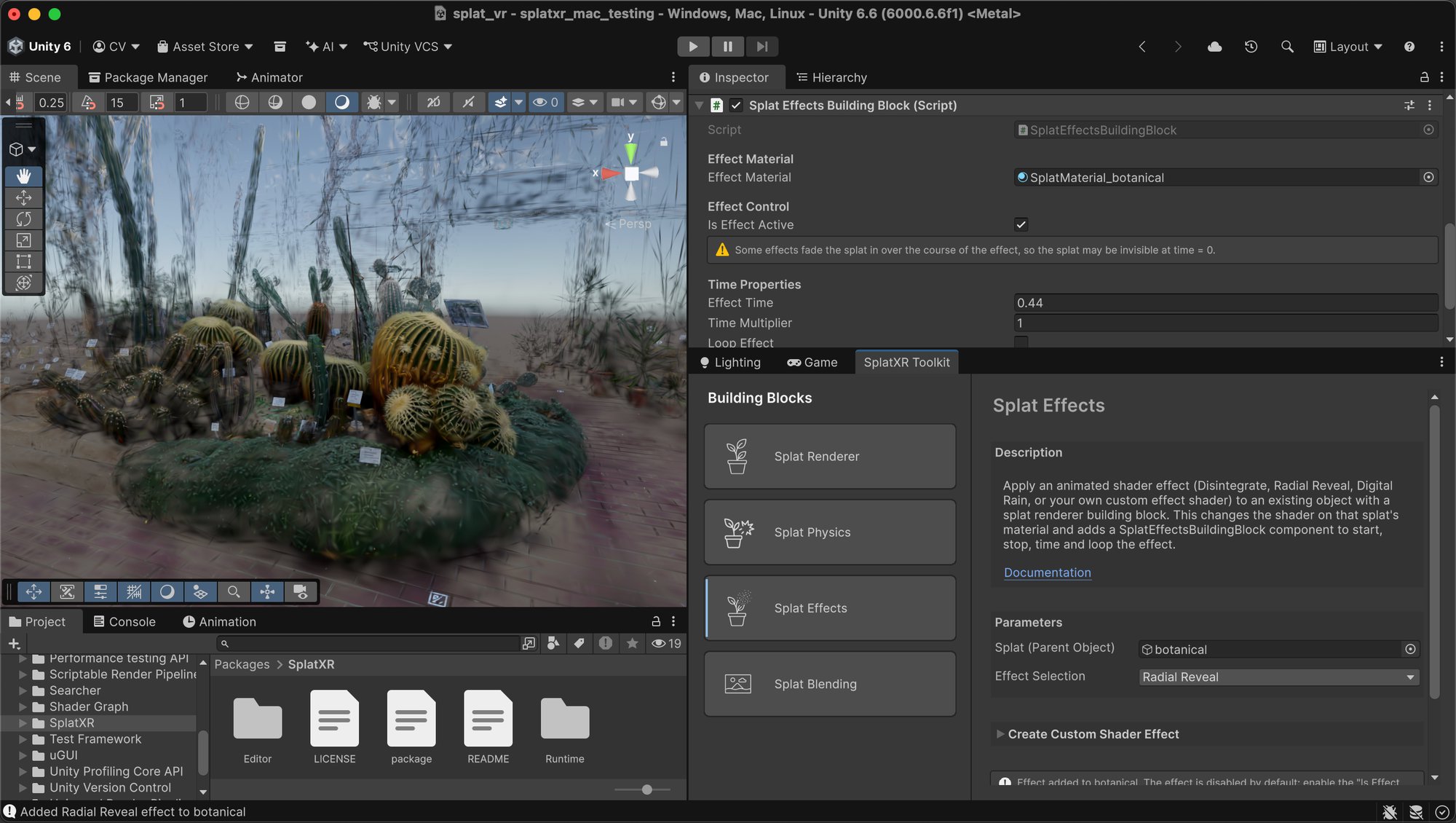
Purpose
Add this building block to the parent splat GameObject to create dynamic visual effects. Useful for transitions, interactions, or stylized appearances.
Examples
Parameters
| Parameter | Description |
|---|---|
| Target Splat | The parent splat GameObject created by the Splat Renderer building block (the one with the splat_renderer child). |
| Effect Selection | Disintegrate: particle-based disintegration effect. Radial Reveal: spherical reveal/hide effect from a point. Digital Rain: splats rain down and assemble into the object. Custom Shader: use your own effect shader. |
| Custom Shader | (Custom Shader only) The shader to apply. Required when Custom Shader is selected. |
Usage
The block swaps the shader on the splat_renderer child's material for the effect shader, and adds a SplatEffectsBuildingBlock component to the parent object.
Turn on the effect
Is Effect Active is off by default, so the effect won't play until you check it. Select the splat's parent object and check Is Effect Active on the SplatEffectsBuildingBlock component in the Inspector.
Each effect runs across a timeline from 0 to 1. Control it from the SplatEffectsBuildingBlock component in the Inspector:
| Field | Description |
|---|---|
| Is Effect Active | Turn on to play the effect, off to stop it. Off by default. |
| Time Multiplier | Playback speed. At 1, the effect takes 1 second from start to end. |
| Loop Effect | Restart from 0 after reaching 1. Otherwise the effect holds at 1. |
From a script, call StartEffect(), StopEffect(), SetTime(float) (clamped to 0–1), and SetLoop(bool).
Writing a custom effect shader
Each frame the component sets two material properties, which your shader should declare:
_EffectActive:1while the effect is playing, otherwise0._EffectTime: the current position on the0–1timeline.
The easiest way to start is the template generator in the Splat Effects panel:
- Expand Create Custom Shader Effect in the Splat Effects building block.
- Enter a Shader Name for your effect.
- Click Create Custom Shader Effect.
This creates a template shader at Assets/Materials/SplatShaders/SplatEffect_<name>.shader and selects it as the Custom Shader. The template already includes the splat rendering code and the _EffectActive and _EffectTime properties. Edit the sections marked YOUR EFFECT GOES HERE to add your effect, then click Add to Splat.
You can also start from one of the built-in shaders in Runtime/SplatXRBuildingBlocks/Effects/Shaders, so your shader keeps the splat rendering code.